'%3e%3cg%20clip-path='url(%23roundHexB)'%3e%3cpath%20fill='%236D5DFC'%20d='M256%2040%20443%20148%20443%20364%20256%20472%2069%20364%2069%20148Z'/%3e%3cpath%20fill='%239C93FB'%20d='M69%20148%20256%2040%20443%20148%20256%20256Z'/%3e%3cpath%20fill='%234A3FD1'%20d='M256%20256%20443%20148%20443%20364%20256%20472Z'/%3e%3c/g%3e%3c!--%20top%20face:%20filled%20round%20magnifier%20--%3e%3cg%20transform='matrix(0.8660254,-0.5,0.8660254,0.5,69,148)'%3e%3cg%20transform='matrix(0.935,0,0,0.935,7.02,7.02)'%3e%3ccircle%20cx='88'%20cy='88'%20r='52'%20fill='%23FFFFFF'/%3e%3ccircle%20cx='88'%20cy='88'%20r='28'%20fill='%239C93FB'/%3e%3cpath%20d='M124%20124%20164%20164'%20stroke='%23FFFFFF'%20stroke-width='26'%20stroke-linecap='round'/%3e%3c/g%3e%3c/g%3e%3cg%20transform='matrix(0.8660254,0.5,0,1,69,148)'%3e%3cpath%20d='M96.1,61.08%20L45.9,128.92%20Q34,145%2054,145%20L162,145%20Q182,145%20170.1,128.92%20L119.9,61.08%20Q108,45%2096.1,61.08%20Z'%20fill='%23FFFFFF'/%3e%3c/g%3e%3c!--%20right%20face:%20filled%20bubble%20--%3e%3cg%20transform='matrix(0.8660254,-0.5,0,1,256,256)'%3e%3cg%20transform='matrix(0.855,0,0,0.855,15.66,15.66)'%3e%3cpath%20d='M60%2042H156a28%2028%200%200%201%2028%2028V158Q184%20168%20174.47%20164.96L124.53%20149.04Q115%20146%20105%20146H60a28%2028%200%200%201-28-28V70a28%2028%200%200%201%2028-28Z'%20fill='%23FFFFFF'/%3e%3c/g%3e%3c/g%3e%3c/g%3e%3c/svg%3e)
 KaleidoVR
 VRC Model Optimizer
상품 설명
Website: https://kalivr.com
Discord: https://discord.com/invite/cRsufJssTA
GitHub: https://github.com/KaleidoVR
What it does
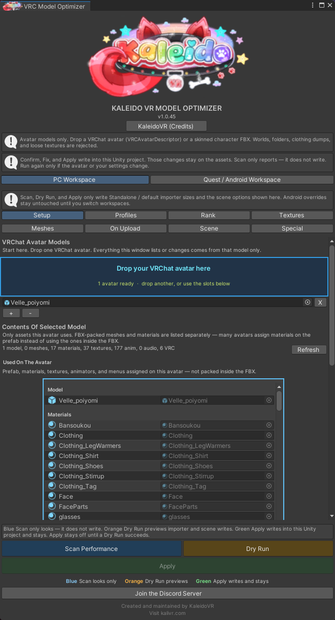
Unity editor tool that scans one VRChat avatar, ranks PC and Quest performance, and applies only the options you turn on. Every option can stay off.
Drop the avatar into Setup. The window lists only the assets that avatar actually uses. Ignore List leaves chosen objects and their textures/meshes untouched. Rank shows what is costing performance. Dry Run previews importer and scene writes. Apply writes nothing until you approve it.
PC Workspace and Quest / Android Workspace are separate. Textures, Meshes, Scene, and Special writes stay on the workspace you are in. On Upload is a different pass: it runs on the assembled VRChat upload copy and does not rewrite your scene or source assets.
Performance Rank and real VRAM
The Rank tab shows your avatar against VRChat's own PC and mobile limits: triangles, material slots, skinned meshes, bones, blend shapes, PhysBones, colliders, contacts, constraints, lights, audio, particles.
Scan / Dry Run also adds Now / On Upload / Change next to those counts, so you can see what the upload pass would do without writing the scene.
It also reports what the rank system does not count:
* Texture and mesh VRAM, split into all assets vs currently active
* What 40 and 80 copies of your avatar would cost in a full instance
* GrabPass usage, blendshape triangles, Any State transitions, animator layers
* Crunch, non-BC5 normals, animation material swaps, streaming mip maps
Orange means it needs a look. Red means mesh Read/Write is off and upload is blocked. Normal means that row is fine. Hints at the bottom tell you what to do next.
Fix problems from the same tab
Found problems can be fixed where you see them, without hunting through your project:
* Write Defaults — set every animator state On or Off, with a Confirm step so nothing changes by accident
* Empty animator states — assigns one shared empty clip to every state with no motion
* Streaming mip maps — turns them on where VRChat expects them
* Unity constraints converted to VRChat constraints using the official VRChat SDK converter, so Play Mode and rank match what the client actually loads
Each row offers Ignore or Fix. Fix and Confirm write into Unity right away. You do not need Apply after those. Scan again later only if you add assets or change the avatar.
Texture control that shows its work
Every texture on the avatar is listed with a clickable preview, its format, its VRAM cost, and which materials and objects use it. Sort by resolution, name, type, or largest VRAM first to find the worst ones immediately.
* Set a max size per texture, or cap by type (albedo, normal, mask, emission, matcap, other)
* Current and New sizes sit side by side, so you always see the change
* Ignore skips the type cap; Set still writes that texture by hand. Both choices are remembered for later runs
* Raising a size asks for Confirm first, and Revert / Forward step through your size changes one at a time
* Type caps never raise a texture that is already smaller
* Dry Run / Apply Max Sizes Only touches size and nothing else
* Importer flags are Enable, Disable, or neither. Neither leaves each listed texture as-is
* With Crunch Enable on, each PC row can have its own Crunch % under Current / New
* Normal maps preview in normal blue; BC5 drops the blue channel, so the tool rebuilds it for display
On Upload (leave the scene alone)
On Upload is off by default. Scan, Dry Run, and Apply do not run it. Tick Apply on upload if you want those options on the assembled VRChat upload copy only. That checkbox follows this Unity editor, not the project.
The scene and source assets stay as they are. Blend shapes, objects, bones, PhysBones, material slots, and meshes that other components still name or point at stay. Audio sources stay. Meshes with material-swap animations stay separate.
You can:
* Merge skinned meshes that animate together (extra objects stay so PhysBones and contacts keep working)
* Merge identical material slots, with an optional shuffle so matching materials sit together
* Remove unused blend shapes (visemes, Eye Look blink / look-up / look-down, and named shapes stay)
* Remove unused components and unused GameObjects
* Keep only weighted bones
* Disable PhysBones when unused
* Optionally optimize FX (off by default, with a warning — it can change gestures and face)
Dry Run On Upload previews the pass. Create optimized copy makes a scene clone so you can pose it and compare rank first. Do not edit that copy or upload it as the master. The original is turned off, not deleted. After a successful VRChat upload, Generated cache is cleared, that copy is removed, and the original is turned back on.
You always know what will happen
The buttons are color coded, so there is no guessing:
BLUE — Scan Performance — looks only, writes nothing
ORANGE — Dry Run — previews every importer and scene change first
GREEN — Apply — writes into your project and stays
Apply stays disabled until a Dry Run succeeds. Confirm and Fix write immediately and are labelled as such. A Scan never writes anything.
After Apply has written a checked option, Undo sits beside it and restores the previous values.
Defaults are conservative: mesh Read/Write and visemes stay on, vertices are not welded, blend shapes are kept, Apply on upload is off, Optimize FX is off, and every high-risk option lives on a separate Special tab that stays off unless you turn it on. Apply asks again when a Special write is not at its default.
Optional timestamped logs are written to Logs/KaleidoVR/Optimizer. Clear Log Cache deletes those files and leaves the folder.
Separate PC and Quest, saved as profiles
PC and Quest / Android are separate workspaces, each with its own Scan, Dry Run, and Apply. A PC run never writes your Android overrides, and a Quest run never touches your PC sizes or scene settings.
Built-in profiles: PC, Quest, Standard, and Everything. Standard is the default start — suggested sizes sit in the dropdowns but are not written until you tick a type. Tick which tabs a profile is allowed to overwrite, so loading one never wipes settings you tuned by hand. Special is never included unless you tick it yourself.
Save your own profiles, then export, back up, or import them as JSON to move a recipe to another project or share it. Importing adds profiles and renames clashes instead of overwriting what you already have.
Requirements, install, and updates
Unity 2022.3.22f1 or newer, including Unity 6 (6000.x)
VRChat SDK3 Avatars is optional. It is only needed for descriptor targeting, PhysBone / contact counts, constraint conversion, and On Upload.
Install:
1. Assets > Import Package > Custom Package...
2. Select the included .unitypackage and import everything
3. Files land in Assets/KaleidoVR/Editor/
4. Open KaleidoVR > VRChat Model Optimizer
Importing a newer version over an older one replaces the files in place.
The newest build is always available free on GitHub. The included readme has the link, so you can update any time without waiting for this page:
https://github.com/KaleidoVR/VRChat-Model-Optimizer/releases
Please back up your project, or use version control, before your first Apply.
Terms, support, and BOOST
This tool is free. The paid variant is simply a tip if you would like to support development — the files are identical. Thank you either way!
Terms — Copyright (c) 2026 KaleidoVR. All rights reserved.
* Use it in your own personal and commercial Unity / VRChat projects
* Keep backup copies for your own use
* Do not redistribute, resell, reupload, or bundle it into another package, paid or free
* Do not claim it as your own work
* Provided as is, with no warranty. Backing up your project before applying changes is your responsibility.
* Downloaded items cannot be refunded on BOOTH.
Questions, bug reports, and feature requests are welcome — report them in the Discord server under the Tickets channel: https://discord.com/invite/cRsufJssTA
Updates
Easiest to provide updates through a GitHub Link (:
https://raw.githubusercontent.com/KaleidoVR/VRChat-Model-Optimizer/refs/heads/main/WHATS-NEW.txt
모든 리뷰
더보기리뷰 등록
리뷰를 작성하려면 로그인이 필요합니다.
로그인하고 리뷰 쓰기