'%3e%3cg%20clip-path='url(%23roundHexB)'%3e%3cpath%20fill='%236D5DFC'%20d='M256%2040%20443%20148%20443%20364%20256%20472%2069%20364%2069%20148Z'/%3e%3cpath%20fill='%239C93FB'%20d='M69%20148%20256%2040%20443%20148%20256%20256Z'/%3e%3cpath%20fill='%234A3FD1'%20d='M256%20256%20443%20148%20443%20364%20256%20472Z'/%3e%3c/g%3e%3c!--%20top%20face:%20filled%20round%20magnifier%20--%3e%3cg%20transform='matrix(0.8660254,-0.5,0.8660254,0.5,69,148)'%3e%3cg%20transform='matrix(0.935,0,0,0.935,7.02,7.02)'%3e%3ccircle%20cx='88'%20cy='88'%20r='52'%20fill='%23FFFFFF'/%3e%3ccircle%20cx='88'%20cy='88'%20r='28'%20fill='%239C93FB'/%3e%3cpath%20d='M124%20124%20164%20164'%20stroke='%23FFFFFF'%20stroke-width='26'%20stroke-linecap='round'/%3e%3c/g%3e%3c/g%3e%3cg%20transform='matrix(0.8660254,0.5,0,1,69,148)'%3e%3cpath%20d='M96.1,61.08%20L45.9,128.92%20Q34,145%2054,145%20L162,145%20Q182,145%20170.1,128.92%20L119.9,61.08%20Q108,45%2096.1,61.08%20Z'%20fill='%23FFFFFF'/%3e%3c/g%3e%3c!--%20right%20face:%20filled%20bubble%20--%3e%3cg%20transform='matrix(0.8660254,-0.5,0,1,256,256)'%3e%3cg%20transform='matrix(0.855,0,0,0.855,15.66,15.66)'%3e%3cpath%20d='M60%2042H156a28%2028%200%200%201%2028%2028V158Q184%20168%20174.47%20164.96L124.53%20149.04Q115%20146%20105%20146H60a28%2028%200%200%201-28-28V70a28%2028%200%200%201%2028-28Z'%20fill='%23FFFFFF'/%3e%3c/g%3e%3c/g%3e%3c/g%3e%3c/svg%3e)
 cyber-matrix
상품 설명
Shorts Video/Audio Combiner — User Manual
A single self-contained HTML file that trims a video and an audio track to
a short-form length and combines them, entirely inside your web browser
using ffmpeg (compiled to WebAssembly). Nothing is uploaded anywhere — all
processing happens on your own machine, in the browser tab.
## 1. Requirements
- A modern desktop browser (Chrome, Safari, or Firefox)
- An internet connection the first time you use it (it downloads the
ffmpeg engine, ~30MB, from a CDN)
- Nothing else — no installation, no Python, no server, no ffmpeg binary
## 2. Opening it
Unzip the folder and double-click **index.html**. It opens directly in
your default browser — that's it, there's no server to start and no
command line involved.
## 3. Using the app
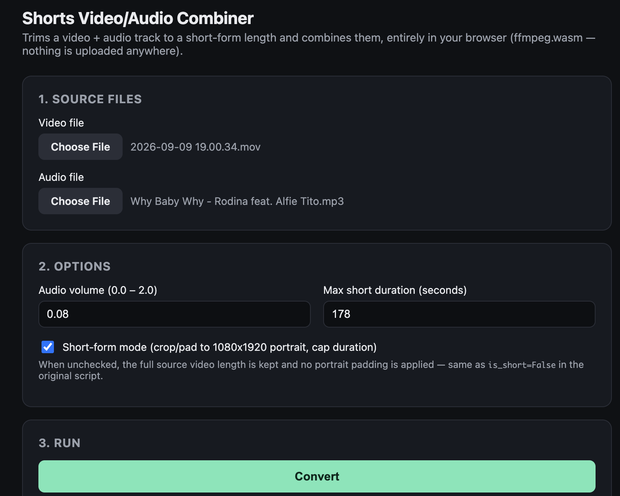
1. **Video file** — click **Choose File** and pick the source video.
2. **Audio file** — click **Choose File** and pick the audio track to lay
over it.
3. **Audio volume (0.0 – 2.0)** — multiplier applied to the audio track's
volume. `1.0` keeps the original level; `0.08` makes it very quiet.
4. **Max short duration (seconds)** — the output is capped to this length
when short-form mode is on. `178` matches the common ~3-minute limit
used by YouTube Shorts / TikTok-style short-form video.
5. **Short-form mode** checkbox:
- **Checked**: output is cropped/padded to a 1080×1920 portrait frame
and capped to the max duration above.
- **Unchecked**: the original video's dimensions and full length are
kept.
6. Click **Convert**.
- The first run downloads the ffmpeg engine (~30MB) — you'll see
"Loading ffmpeg core..." in the status line.
- **While it's actually processing, the page will look frozen** (the
status line stops updating and the tab won't respond to clicks) —
this is expected, not a crash. Everything runs on the same thread as
the page itself, so there's nothing left to keep the UI moving while
ffmpeg works. Just wait for it; don't close the tab or click Convert
again.
- This can take anywhere from several seconds to a couple of minutes
depending on your machine and the video's length, since it's software
encoding running in the browser rather than your GPU/native ffmpeg.
7. When it finishes, the status line says "Done." and a preview with a
**Download** link appears below the log.
## 4. Troubleshooting
- **"Please choose both a video file and an audio file."** — one or both
file pickers were left empty.
- **The page hangs on "Loading ffmpeg core..." and never gets past it** —
check your internet connection; the engine is fetched from a CDN on
first use, and a firewall or ad-blocker that blocks `cdn.jsdelivr.net`
will prevent this.
- **The tab looks frozen after clicking Convert** — see the note in step 6
above; this is expected while ffmpeg is running, not an error.
- **The tab crashes or the browser warns the page is unresponsive** — this
can happen with a very long or very high-resolution source video, since
everything is decoded/encoded in-browser with no hard limit on memory
use. Try a shorter or lower-resolution source.
- Any other error is shown in the red box above the log, with ffmpeg's own
output underneath it for more detail.
모든 리뷰
더보기리뷰 등록
리뷰를 작성하려면 로그인이 필요합니다.
로그인하고 리뷰 쓰기