'%3e%3cg%20clip-path='url(%23roundHexB)'%3e%3cpath%20fill='%236D5DFC'%20d='M256%2040%20443%20148%20443%20364%20256%20472%2069%20364%2069%20148Z'/%3e%3cpath%20fill='%239C93FB'%20d='M69%20148%20256%2040%20443%20148%20256%20256Z'/%3e%3cpath%20fill='%234A3FD1'%20d='M256%20256%20443%20148%20443%20364%20256%20472Z'/%3e%3c/g%3e%3c!--%20top%20face:%20filled%20round%20magnifier%20--%3e%3cg%20transform='matrix(0.8660254,-0.5,0.8660254,0.5,69,148)'%3e%3cg%20transform='matrix(0.935,0,0,0.935,7.02,7.02)'%3e%3ccircle%20cx='88'%20cy='88'%20r='52'%20fill='%23FFFFFF'/%3e%3ccircle%20cx='88'%20cy='88'%20r='28'%20fill='%239C93FB'/%3e%3cpath%20d='M124%20124%20164%20164'%20stroke='%23FFFFFF'%20stroke-width='26'%20stroke-linecap='round'/%3e%3c/g%3e%3c/g%3e%3cg%20transform='matrix(0.8660254,0.5,0,1,69,148)'%3e%3cpath%20d='M96.1,61.08%20L45.9,128.92%20Q34,145%2054,145%20L162,145%20Q182,145%20170.1,128.92%20L119.9,61.08%20Q108,45%2096.1,61.08%20Z'%20fill='%23FFFFFF'/%3e%3c/g%3e%3c!--%20right%20face:%20filled%20bubble%20--%3e%3cg%20transform='matrix(0.8660254,-0.5,0,1,256,256)'%3e%3cg%20transform='matrix(0.855,0,0,0.855,15.66,15.66)'%3e%3cpath%20d='M60%2042H156a28%2028%200%200%201%2028%2028V158Q184%20168%20174.47%20164.96L124.53%20149.04Q115%20146%20105%20146H60a28%2028%200%200%201-28-28V70a28%2028%200%200%201%2028-28Z'%20fill='%23FFFFFF'/%3e%3c/g%3e%3c/g%3e%3c/g%3e%3c/svg%3e)
 LATTICEMINT
상품 설명
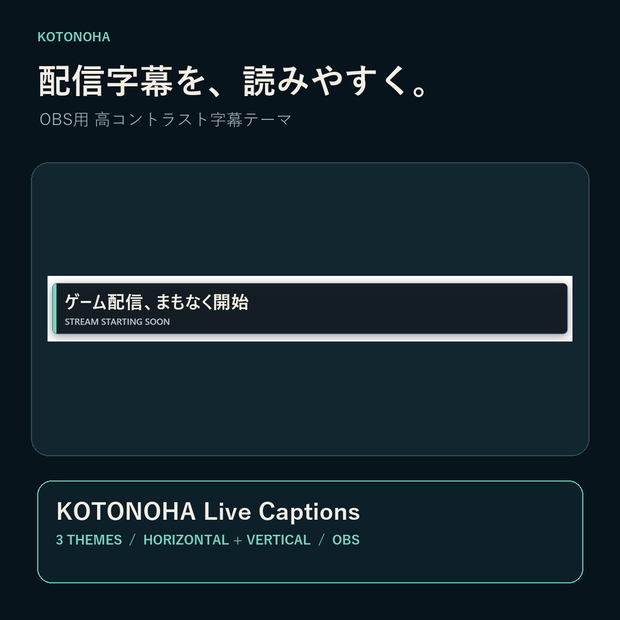
OBSのブラウザソースで使える、手動入力・外部連携向けの字幕表示ツールです。Harbor / Paper / Signalの3テーマと、横配信・縦配信の2レイアウトを収録しています。
【収録内容】
・字幕テーマ3種:Harbor / Paper / Signal
・横配信・縦配信レイアウト
・主字幕・補助字幕の2枠表示(文章量に応じて折り返し)
・ブラウザ操作画面、ローカルJSON API、Windows用起動ファイル
・日本語/英語README、OBS導入ガイド、外部ツール連携ガイド、利用規約、更新履歴
【使い方】
1. START_CAPTIONS.batを起動します。
2. OBSでブラウザソースを追加し、http://127.0.0.1:8765/overlay.html を指定します。
3. 操作画面から字幕、テーマ、画面方向を選び、字幕を反映します。
横配信は1920×1080、縦配信は1080×1920を推奨します。字幕は手動入力のほか、同じPC上の外部ツールからJSON APIで送信できます。
【注意事項】
・Windows 11、OBS Studio 32.2.1、PowerShell 5.1で動作確認済みです。
・音声認識、翻訳、自動字幕生成機能は含まれません。
・OBS Studioの全バージョン、すべてのプラグイン構成での動作保証はありません。
・サーバーは同じPC内の127.0.0.1のみで動作し、外部通信やクラウド送信は行いません。
・配信前に実際の解像度・フォント・セーフエリアで表示をご確認ください。
【English】
A caption-display tool for manual input or external integration through an OBS Browser Source. Includes Harbor, Paper, and Signal themes, with horizontal and vertical layouts.
【Contents】
・Three caption themes: Harbor / Paper / Signal
・Horizontal and vertical layouts
・Primary and secondary caption fields with text wrapping
・Browser control page, local JSON API, and Windows launcher
・Japanese/English READMEs, OBS setup guide, external integration guide, terms of use, and changelog
【How to Use】
1. Launch START_CAPTIONS.bat.
2. Add an OBS Browser Source with http://127.0.0.1:8765/overlay.html as its URL.
3. Select the caption, theme, and orientation in the control page, then apply.
Recommended canvas: 1920×1080 horizontal or 1080×1920 vertical. Enter captions manually or send them via JSON API from another tool on the same PC.
【Notes】
・Verified with Windows 11, OBS Studio 32.2.1, and PowerShell 5.1.
・Speech recognition, translation, and automatic caption generation are not included.
・Compatibility with every OBS version or plug-in configuration is not guaranteed.
・The server operates only at 127.0.0.1 on this PC, with no external communication or cloud uploads.
・Check the display at your actual resolution, fonts, and safe area before streaming.
모든 리뷰
더보기리뷰 등록
리뷰를 작성하려면 로그인이 필요합니다.
로그인하고 리뷰 쓰기