'%3e%3cg%20clip-path='url(%23roundHexB)'%3e%3cpath%20fill='%236D5DFC'%20d='M256%2040%20443%20148%20443%20364%20256%20472%2069%20364%2069%20148Z'/%3e%3cpath%20fill='%239C93FB'%20d='M69%20148%20256%2040%20443%20148%20256%20256Z'/%3e%3cpath%20fill='%234A3FD1'%20d='M256%20256%20443%20148%20443%20364%20256%20472Z'/%3e%3c/g%3e%3c!--%20top%20face:%20filled%20round%20magnifier%20--%3e%3cg%20transform='matrix(0.8660254,-0.5,0.8660254,0.5,69,148)'%3e%3cg%20transform='matrix(0.935,0,0,0.935,7.02,7.02)'%3e%3ccircle%20cx='88'%20cy='88'%20r='52'%20fill='%23FFFFFF'/%3e%3ccircle%20cx='88'%20cy='88'%20r='28'%20fill='%239C93FB'/%3e%3cpath%20d='M124%20124%20164%20164'%20stroke='%23FFFFFF'%20stroke-width='26'%20stroke-linecap='round'/%3e%3c/g%3e%3c/g%3e%3cg%20transform='matrix(0.8660254,0.5,0,1,69,148)'%3e%3cpath%20d='M96.1,61.08%20L45.9,128.92%20Q34,145%2054,145%20L162,145%20Q182,145%20170.1,128.92%20L119.9,61.08%20Q108,45%2096.1,61.08%20Z'%20fill='%23FFFFFF'/%3e%3c/g%3e%3c!--%20right%20face:%20filled%20bubble%20--%3e%3cg%20transform='matrix(0.8660254,-0.5,0,1,256,256)'%3e%3cg%20transform='matrix(0.855,0,0,0.855,15.66,15.66)'%3e%3cpath%20d='M60%2042H156a28%2028%200%200%201%2028%2028V158Q184%20168%20174.47%20164.96L124.53%20149.04Q115%20146%20105%20146H60a28%2028%200%200%201-28-28V70a28%2028%200%200%201%2028-28Z'%20fill='%23FFFFFF'/%3e%3c/g%3e%3c/g%3e%3c/g%3e%3c/svg%3e)
 bunbnnuy
상품 설명
VRC OBS Controller
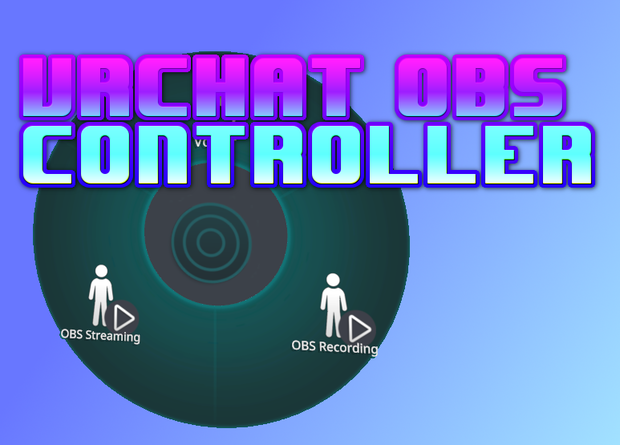
Control OBS recording and streaming directly from your VRChat avatar's expression menu — no external apps required.
[VRChat Avatar Menu] ──OSC UDP:9001──▶ [OBS Plugin] ──OSC UDP:9000──▶ [VRChat]
(OBS Control submenu) (this repo) (state sync-back)
The OBS plugin listens for OSC messages from VRChat and calls the OBS recording/streaming API directly. It also sends the current OBS state back to VRChat so your avatar toggles stay in sync.
Requirements
OBS Studio 32.x (Windows x64, Steam or standalone)
VRChat SDK3 (Avatars) + Modular Avatar ≥ 1.9
Unity 2022.3.x LTS
Installation
OBS Plugin
Download obs-osc-controller.dll from the latest release
Copy it to <OBS install>\obs-plugins\64bit\
Restart OBS
The plugin adds an OBS OSC Controller entry under Tools. Default ports:
Port Direction Purpose
9001 VRChat → OBS Receive OSC commands
9000 OBS → VRChat Send state sync-back
VRChat Avatar
Open your avatar project in Unity 2022.3.x
Ensure VRChat SDK3 Avatars and Modular Avatar ≥ 1.9 are installed
Assets → Import Package → Custom Package → select OBSController.unitypackage
Drag Assets/OBSController/OBSController prefab onto your avatar root in the Hierarchy
Build & upload the avatar
The prefab adds an OBS Control submenu to your expression menu with two toggles: OBS Recording and OBS Streaming.
Enable OSC in VRChat
Quick Menu → Options → OSC → Enable
Usage
Action Effect
Toggle OBS Recording ON Starts OBS recording
Toggle OBS Recording OFF Stops OBS recording (after 3 s debounce)
Toggle OBS Streaming ON Starts OBS streaming
Toggle OBS Streaming OFF Stops OBS streaming (after 3 s debounce)
Start/stop recording in OBS manually Avatar toggles sync back within ~1 s
The 3-second debounce prevents VRChat's parameter re-broadcast from immediately cancelling a just-started recording.
Check the Github repository
모든 리뷰
더보기리뷰 등록
리뷰를 작성하려면 로그인이 필요합니다.
로그인하고 리뷰 쓰기