'%3e%3cg%20clip-path='url(%23roundHexB)'%3e%3cpath%20fill='%236D5DFC'%20d='M256%2040%20443%20148%20443%20364%20256%20472%2069%20364%2069%20148Z'/%3e%3cpath%20fill='%239C93FB'%20d='M69%20148%20256%2040%20443%20148%20256%20256Z'/%3e%3cpath%20fill='%234A3FD1'%20d='M256%20256%20443%20148%20443%20364%20256%20472Z'/%3e%3c/g%3e%3c!--%20top%20face:%20filled%20round%20magnifier%20--%3e%3cg%20transform='matrix(0.8660254,-0.5,0.8660254,0.5,69,148)'%3e%3cg%20transform='matrix(0.935,0,0,0.935,7.02,7.02)'%3e%3ccircle%20cx='88'%20cy='88'%20r='52'%20fill='%23FFFFFF'/%3e%3ccircle%20cx='88'%20cy='88'%20r='28'%20fill='%239C93FB'/%3e%3cpath%20d='M124%20124%20164%20164'%20stroke='%23FFFFFF'%20stroke-width='26'%20stroke-linecap='round'/%3e%3c/g%3e%3c/g%3e%3cg%20transform='matrix(0.8660254,0.5,0,1,69,148)'%3e%3cpath%20d='M96.1,61.08%20L45.9,128.92%20Q34,145%2054,145%20L162,145%20Q182,145%20170.1,128.92%20L119.9,61.08%20Q108,45%2096.1,61.08%20Z'%20fill='%23FFFFFF'/%3e%3c/g%3e%3c!--%20right%20face:%20filled%20bubble%20--%3e%3cg%20transform='matrix(0.8660254,-0.5,0,1,256,256)'%3e%3cg%20transform='matrix(0.855,0,0,0.855,15.66,15.66)'%3e%3cpath%20d='M60%2042H156a28%2028%200%200%201%2028%2028V158Q184%20168%20174.47%20164.96L124.53%20149.04Q115%20146%20105%20146H60a28%2028%200%200%201-28-28V70a28%2028%200%200%201%2028-28Z'%20fill='%23FFFFFF'/%3e%3c/g%3e%3c/g%3e%3c/g%3e%3c/svg%3e)
 qystudio
상품 설명
English
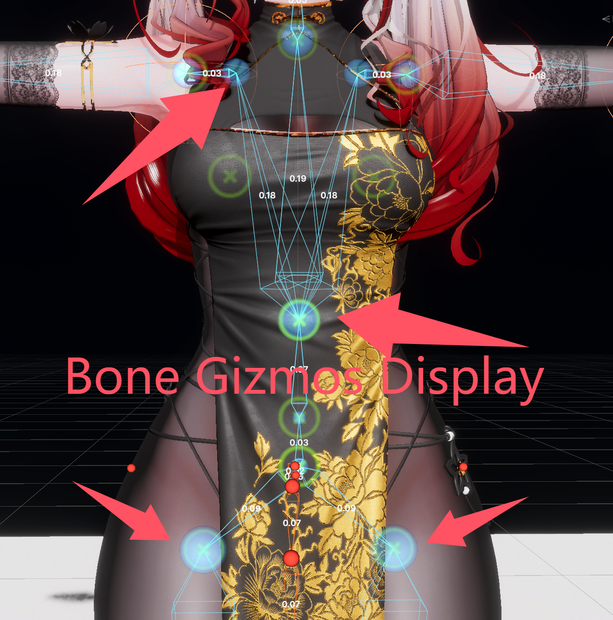
Bone Gizmos Display is a lightweight Unity Editor tool for visualizing skeletal hierarchies directly in the Scene view. It supports both Humanoid bones (from Animator) and custom physics bone chains, with interactive joint selection and multi-language UI.
Features:
Visualize bones as Pyramid, Line, or Box shapes
Adaptive thickness — short bones (fingers) draw thinner, long bones (limbs) draw thicker
Dual bone lists: Human bones from Animator + Physics bones from multiple root sources
Click-to-select joints directly in Scene view, with hover highlight
Works even when other objects are selected
Fully adjustable colors, joint sphere size, and bone length labels
Built-in English / Chinese / Japanese interface
Zero runtime overhead — Editor only, no build impact
Use Cases:
Character rigging inspection and debugging
Physics bone chain visualization (hair, cloth, tail)
Quick bone selection without digging through deep hierarchies
Bone length measurement for animation reference
中文
Bone Gizmos Display 是一款轻量级的 Unity 编辑器骨骼可视化工具,可在 Scene 视图中直观显示骨骼层级结构。支持人形骨骼(Animator)和自定义物理骨骼链,提供可交互的关节点选功能和多语言界面。
功能特性:
三种骨骼显示样式:金字塔型、线条型、长方体型
自适应粗细 — 短骨骼(手指)自动变细,长骨骼(四肢)保持粗壮
双骨骼列表:从 Animator 获取人类骨骼 + 从多个根节点收集物理骨骼
在 Scene 视图中直接点击关节球选中骨骼,悬停时绿色高亮
选中其他物体时关节球不会消失,始终可交互
颜色、关节球大小、骨骼长度标签均可自由调节
内置中文 / 英文 / 日语界面切换
零运行时开销 — 纯编辑器工具,不影响打包
适用场景:
角色骨骼绑定检查与调试
物理骨骼链可视化(头发、布料、尾巴)
无需在深层 Hierarchy 中翻找,直接点选骨骼
骨骼长度测量,辅助动画制作
日本語
Bone Gizmos Display は Unity エディター向けの軽量なボーン可視化ツールです。Scene ビュー上でスケルトン階層を直感的に表示し、Humanoid ボーン(Animator)とカスタム物理ボーンチェーンの両方に対応。インタラクティブな関節選択機能と多言語 UI を搭載しています。
機能:
ピラミッド型・ライン型・ボックス型の3種類の描画スタイル
適応的太さ — 短いボーン(指)は細く、長いボーン(腕・脚)は太く自動調整
デュアルボーンリスト:Animator から人体ボーン取得 + 複数ルートから物理ボーン収集
Scene ビューで関節球を直接クリックしてボーンを選択、ホバー時に緑色ハイライト
他のオブジェクトを選択中でも関節球が消えず、常にインタラクション可能
カラー、関節球サイズ、ボーン長さラベルを自由にカスタマイズ
英語 / 中国語 / 日本語 UI 内蔵
ランタイムコストゼロ — エディター専用、ビルドに影響なし
活用シーン:
キャラクターリグの確認・デバッグ
物理ボーンチェーンの可視化(髪、布、尻尾)
深い Hierarchy を辿らずワンクリックでボーン選択
アニメーション制作時のボーン長さ計測
Compatibility: Unity 2020.3+ / Built-in RP, URP, HDRP
Usage Guide / 使用方法 / 使用ガイド
English
Quick Start
Add Component
Select any GameObject in your scene
Click Add Component → search BoneGizmosDisplay → add it
Get Human Bones (from Animator)
Drag a Humanoid model's Animator into the Source Animator field
Click Get Human Bones From Animator button
Human bone list will be auto-populated
Get Physics Bones (from hierarchy)
In Physics Bone Sources, click + to add a source
Drag the root transform of your physics bone chain (e.g., hair root, tail root) into the Root field
Add multiple sources if needed (hair, skirt, tail, etc.)
Click Collect From All Sources
Or click Collect From Self to use the component's own GameObject as root
View in Scene
Bones will immediately display in Scene view as colored wireframes
Blue = Human bones, Green = Physics bones (default colors)
Bone Selection (Click to Select)
Check Enable Bone Selection in the Inspector
Hover over any joint sphere in the Scene view → it turns green and enlarges
Left-click to select that bone's Transform
The selected bone will be highlighted in both Hierarchy and Inspector
Works even when another object is currently selected
Display Settings
Setting Description
Draw Type Pyramid (directional), Line (simple), Box (volume)
Adaptive Thickness ON = short bones auto-thin, OFF = uniform thickness
Thickness Ratio How much bone length affects thickness (higher = thicker)
Min/Max Thickness Clamp range to prevent extremes
Show Joints Toggle joint sphere visibility
Adaptive Joint Size Joint spheres scale with connected bone lengths
Show Bone Length Display distance values at bone midpoints
Tips
Multiple sources: You can add separate roots for hair, cloth, and tail — they merge into one physics bone list without duplicates
Include Root: Check this if you want the root transform itself to appear as a joint
Only Show When Selected: Enable this if you have many BoneGizmosDisplay components and don't want visual clutter
Manual drag & drop: Both bone lists support dragging transforms directly from Hierarchy
Recalculation: Parent-child relationships auto-recalculate when you modify the lists. Use context menu Recalculate if something looks wrong
中文
快速开始
添加组件
选中场景中任意 GameObject
点击 Add Component → 搜索 BoneGizmosDisplay → 添加
获取人类骨骼(从 Animator)
将人形模型的 Animator 拖入 Source Animator 栏位
点击 从 Animator 获取人类骨骼 按钮
人类骨骼列表将自动填充
获取物理骨骼(从层级结构)
在 物理骨骼收集源 中点击 + 添加一个源
将物理骨骼链的根节点(如头发根、尾巴根)拖入 Root 栏位
可添加多个源(头发、裙子、尾巴等)
点击 从所有源收集物理骨骼
或点击 从自身收集 以当前物体为根收集所有子物体
场景中查看
骨骼会立即在 Scene 视图中以彩色线框显示
蓝色 = 人类骨骼,绿色 = 物理骨骼(默认颜色)
骨骼点选功能
在 Inspector 中勾选 启用骨骼点选
将鼠标悬停在 Scene 视图中的关节球上 → 球体变绿并放大
左键点击即可选中该骨骼的 Transform
被选中的骨骼会在 Hierarchy 和 Inspector 中同步高亮
即使当前选中了其他物体,关节球也可正常交互
显示设置说明
设置项 说明
绘制类型 金字塔型(有方向感)、线条型(简洁)、长方体型(有体积感)
自适应粗细 开启 = 短骨自动变细,关闭 = 统一粗细
粗细比例 骨骼长度对粗细的影响程度(越大越粗)
最小/最大粗细 限制范围,防止极端情况
显示关节球 开关关节球的显示
自适应关节大小 关节球根据连接骨骼长度自动缩放
显示骨骼长度 在骨骼中点显示距离数值
使用技巧
多源收集: 可以分别为头发、布料、尾巴各添加一个根节点,收集结果自动去重合并
包含根自身: 勾选后根节点本身也会显示为一个关节点
仅选中时显示: 场景中有多个该组件时,开启此选项避免视觉杂乱
手动拖入: 两个骨骼列表都支持从 Hierarchy 直接拖入 Transform
重新计算: 修改列表后父子关系会自动刷新。如显示异常,可右键菜单执行"重新计算"
语言切换: Inspector 顶部的 Language 下拉框可随时切换中/英/日界面
日本語
クイックスタート
コンポーネント追加
シーン内の任意の GameObject を選択
Add Component → BoneGizmosDisplay を検索 → 追加
人体ボーンを取得(Animator から)
Humanoid モデルの Animator を Source Animator フィールドにドラッグ
Animatorから人体ボーンを取得 ボタンをクリック
人体ボーンリストが自動的に生成されます
物理ボーンを取得(階層構造から)
物理ボーンソース で + をクリックしてソースを追加
物理ボーンチェーンのルート Transform(髪のルート、尻尾のルートなど)を Root にドラッグ
必要に応じて複数ソースを追加(髪、スカート、尻尾など)
全ソースから収集 をクリック
または 自身から収集 で現在のオブジェクトをルートとして全子オブジェクトを収集
シーンで確認
ボーンが Scene ビューにカラーワイヤーフレームで即座に表示されます
青 = 人体ボーン、緑 = 物理ボーン(デフォルト色)
ボーン選択機能(クリック選択)
Inspector で ボーン選択を有効化 にチェック
Scene ビュー内の関節球にマウスを重ねる → 緑色に変わり拡大
左クリックでそのボーンの Transform を選択
選択されたボーンは Hierarchy と Inspector で同期ハイライト
他のオブジェクトが選択中でも関節球は正常にインタラクション可能
表示設定
設定項目 説明
描画タイプ ピラミッド型(方向表示)、ライン型(シンプル)、ボックス型(ボリューム感)
適応的太さ ON = 短いボーンは自動的に細く、OFF = 均一の太さ
太さ比率 ボーン長さが太さに与える影響度(大きいほど太い)
最小/最大太さ 極端なケースを防ぐクランプ範囲
関節球を表示 関節球の表示/非表示
適応的関節サイズ 接続ボーン長さに応じて関節球が自動スケール
ボーン長さ表示 ボーン中点に距離の数値を表示
活用のコツ
複数ソース: 髪・布・尻尾それぞれにルートを設定可能。収集結果は自動重複排除されます
ルートを含む: チェックするとルート Transform 自体も関節点として表示
選択時のみ表示: シーンに複数コンポーネントがある場合、視覚的な混乱を避けるためにONに
手動ドラッグ: 両方のボーンリストは Hierarchy から直接 Transform をドラッグ&ドロップ対応
再計算: リスト変更時に親子関係は自動更新。表示がおかしい場合はコンテキストメニューから「再計算」を実行
言語切替: Inspector 上部の Language ドロップダウンでいつでも英/中/日を切替可能
Update information
1.0.0发布
모든 리뷰
더보기리뷰 등록
리뷰를 작성하려면 로그인이 필요합니다.
로그인하고 리뷰 쓰기