'%3e%3cg%20clip-path='url(%23roundHexB)'%3e%3cpath%20fill='%236D5DFC'%20d='M256%2040%20443%20148%20443%20364%20256%20472%2069%20364%2069%20148Z'/%3e%3cpath%20fill='%239C93FB'%20d='M69%20148%20256%2040%20443%20148%20256%20256Z'/%3e%3cpath%20fill='%234A3FD1'%20d='M256%20256%20443%20148%20443%20364%20256%20472Z'/%3e%3c/g%3e%3c!--%20top%20face:%20filled%20round%20magnifier%20--%3e%3cg%20transform='matrix(0.8660254,-0.5,0.8660254,0.5,69,148)'%3e%3cg%20transform='matrix(0.935,0,0,0.935,7.02,7.02)'%3e%3ccircle%20cx='88'%20cy='88'%20r='52'%20fill='%23FFFFFF'/%3e%3ccircle%20cx='88'%20cy='88'%20r='28'%20fill='%239C93FB'/%3e%3cpath%20d='M124%20124%20164%20164'%20stroke='%23FFFFFF'%20stroke-width='26'%20stroke-linecap='round'/%3e%3c/g%3e%3c/g%3e%3cg%20transform='matrix(0.8660254,0.5,0,1,69,148)'%3e%3cpath%20d='M96.1,61.08%20L45.9,128.92%20Q34,145%2054,145%20L162,145%20Q182,145%20170.1,128.92%20L119.9,61.08%20Q108,45%2096.1,61.08%20Z'%20fill='%23FFFFFF'/%3e%3c/g%3e%3c!--%20right%20face:%20filled%20bubble%20--%3e%3cg%20transform='matrix(0.8660254,-0.5,0,1,256,256)'%3e%3cg%20transform='matrix(0.855,0,0,0.855,15.66,15.66)'%3e%3cpath%20d='M60%2042H156a28%2028%200%200%201%2028%2028V158Q184%20168%20174.47%20164.96L124.53%20149.04Q115%20146%20105%20146H60a28%2028%200%200%201-28-28V70a28%2028%200%200%201%2028-28Z'%20fill='%23FFFFFF'/%3e%3c/g%3e%3c/g%3e%3c/g%3e%3c/svg%3e)
 vynx
vynx상품 설명
Vynx Avatar Outfit TSC
Toggle Switch Creator for VRChat Avatars
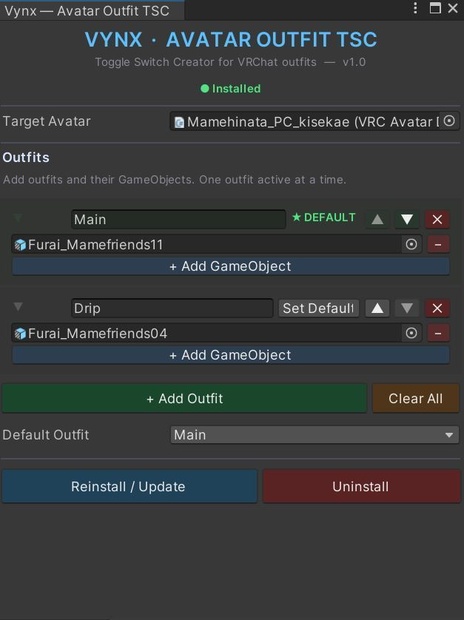
Vynx Avatar Outfit TSC is a Unity Editor tool that lets you set up outfit switching on your VRChat avatar in minutes — no animator knowledge required. Define your outfits, assign GameObjects, pick a default, and hit install. The tool generates all the VRCFury toggles for you with exclusive tagging so only one outfit shows at a time.
---
What It Does
Outfit TSC creates a clean set of VRCFury-powered toggles under your avatar hierarchy. Each outfit gets its own toggle placed inside an `Outfits/` submenu in your expressions menu. The toggles use VRCFury's exclusive tag system, which means activating one outfit automatically deactivates the others — no conflicting states, no manual animator layer work.
Under the hood, the tool:
- Creates a `Vynx_OutfitToggles` container on your avatar
- Generates one VRCFury Toggle component per outfit
- Tags all toggles with a shared exclusive tag (`VynxOutfit`) so they're mutually exclusive
- Sets the correct default outfit to be active on avatar load
- Saves toggle state so your selected outfit persists between worlds
---
Why You'd Want This
If you've ever tried to set up outfit switching manually, you know the pain: animator controllers, parameter budgets, expression menu wiring, making sure states don't overlap. It's tedious and error-prone, especially when you just want to swap between a few looks.
Outfit TSC removes all of that friction. You get:
- One-click setup — no touching animators or expression menus by hand
- Mutual exclusivity — only one outfit active at a time, always
- Saved state — your outfit choice sticks when you switch worlds
- Easy updates — add or remove outfits and reinstall whenever you want
- Full undo support — everything is undoable in Unity's undo system
- Clean uninstall — removes everything it created, no leftover junk
---
Requirements
- Unity 2022.3 (VRChat Creator Companion recommended)
- VRChat Avatars SDK 3.x
- [VRCFury](https://vrcfury.com/) installed in your project
---
How to Use
1. Open the tool: Vynx > Avatar Outfit TSC in the Unity menu bar
2. Your avatar should auto-detect. If not, drag it into the Target Avatar field
3. Click + Add Outfit for each outfit you want
4. Name each outfit and drag in the GameObjects that belong to it (meshes, accessories, etc.)
5. Pick which outfit is the default (active on avatar load)
6. Click Install Outfit Toggles
That's it. Your expression menu will have an `Outfits` submenu with a toggle for each outfit.
Updating
Changed your mind about an outfit? Add, remove, or rearrange entries in the tool and click Reinstall / Update. The old toggles get replaced cleanly.
Removing
Click Uninstall to remove all generated toggles from your avatar. Your original GameObjects are untouched.
---
How It Looks In-Game
Once installed, you'll find your outfits under **Expressions Menu > Outfits**. Tap one to switch. The previous outfit turns off automatically. Your selection is saved, so the next time you load into a world you'll be wearing whatever you picked last.
---
Version
v1.0
모든 리뷰
더보기리뷰 등록
리뷰를 작성하려면 로그인이 필요합니다.
로그인하고 리뷰 쓰기