'%3e%3cg%20clip-path='url(%23roundHexB)'%3e%3cpath%20fill='%236D5DFC'%20d='M256%2040%20443%20148%20443%20364%20256%20472%2069%20364%2069%20148Z'/%3e%3cpath%20fill='%239C93FB'%20d='M69%20148%20256%2040%20443%20148%20256%20256Z'/%3e%3cpath%20fill='%234A3FD1'%20d='M256%20256%20443%20148%20443%20364%20256%20472Z'/%3e%3c/g%3e%3c!--%20top%20face:%20filled%20round%20magnifier%20--%3e%3cg%20transform='matrix(0.8660254,-0.5,0.8660254,0.5,69,148)'%3e%3cg%20transform='matrix(0.935,0,0,0.935,7.02,7.02)'%3e%3ccircle%20cx='88'%20cy='88'%20r='52'%20fill='%23FFFFFF'/%3e%3ccircle%20cx='88'%20cy='88'%20r='28'%20fill='%239C93FB'/%3e%3cpath%20d='M124%20124%20164%20164'%20stroke='%23FFFFFF'%20stroke-width='26'%20stroke-linecap='round'/%3e%3c/g%3e%3c/g%3e%3cg%20transform='matrix(0.8660254,0.5,0,1,69,148)'%3e%3cpath%20d='M96.1,61.08%20L45.9,128.92%20Q34,145%2054,145%20L162,145%20Q182,145%20170.1,128.92%20L119.9,61.08%20Q108,45%2096.1,61.08%20Z'%20fill='%23FFFFFF'/%3e%3c/g%3e%3c!--%20right%20face:%20filled%20bubble%20--%3e%3cg%20transform='matrix(0.8660254,-0.5,0,1,256,256)'%3e%3cg%20transform='matrix(0.855,0,0,0.855,15.66,15.66)'%3e%3cpath%20d='M60%2042H156a28%2028%200%200%201%2028%2028V158Q184%20168%20174.47%20164.96L124.53%20149.04Q115%20146%20105%20146H60a28%2028%200%200%201-28-28V70a28%2028%200%200%201%2028-28Z'%20fill='%23FFFFFF'/%3e%3c/g%3e%3c/g%3e%3c/g%3e%3c/svg%3e)
 vevents
상품 설명
◆ 【 VEVENTS — Unity/VRChat 用フィード・プレハブ (JA) 】
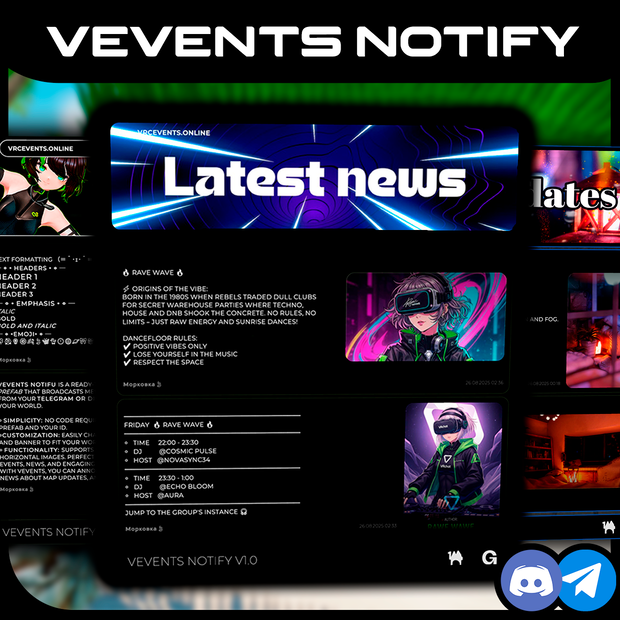
VRChat ワールドにメッセージ/通知フィードを表示するためのプレハブです。サーバー構築は不要。あなたの専用コード (ID) を入力し、プレハブをシーンへ配置するだけで使えます。
◆ 【 TUTORIAL 】
https://www.youtube.com/watch?v=EM_Q4OPxCA4
✦ 要件:
- Unity 2022.3.22f1
- VRChat SDK 3.8.2
- UdonSharp
✦ 同梱物:
- プレハブ: `unity-prefab-proj/Assets/VEVENTS/Prefabs/FeedController.prefab`
- スクリプト: `FeedControllerU`, `MessageItemSlotU`, `MessageItemU`, `BrandGuardU`, `NoKeyScrollRectU`
- セットアップウィザード: Unity メニュー `VEVENTS/Setup Wizard`
✦ 使い方 (サーバー不要):
1) ボットからあなたのコード/ID を取得します。
- Telegram: チャンネル/コミュニティに `@vevents_notify_bot` を管理者として追加。連携後、チャンネル所有者と追加したユーザーへ DM でコードが届きます。必要に応じてボットへ `/my_channels` を送信すると一覧で確認できます。
- Discord: ボットを招待 https://discord.com/oauth2/authorize?client_id=1403797293911769210&permissions=117760&integration_type=0&scope=bot+applications.commands 後、対象テキストチャンネルで `/connect`。ボットがあなたにのみ見えるエフェメラル返信でコードを返します。
2) VRChat SDK と UdonSharp を導入した Unity プロジェクトを開きます。
3) `FeedController.prefab` をシーンにドラッグ&ドロップします。
4) `VEVENTS/Setup Wizard` を開く (または `FeedControllerU` インスペクターの `Open VEVENTS Setup` をクリック)。`User/Bot ID` にコードを入力し、`Assign All` をクリック ( `FeedUrl` と `ImageUrls` を自動設定)。
5) Play Mode で表示を確認。画像は VRChat の制限により順次 (約5秒/枚) 読み込まれます。
✦ 注意:
- 許可リスト外ドメインを利用する場合、VRChat クライアントの「Allow Untrusted URLs」を有効化してください。
- ランタイムで `VRCUrl` は生成できません。URL はインスペクターまたはウィザードで割り当てます。
- ランタイムでの `Instantiate` は行いません。メッセージスロットはプレハブ内にあらかじめ配置済みです。
- ウィザードには `Auto-Find` ボタンと `Preview` セクションがあり、割り当て予定の URL を事前に確認できます。
✦ ドキュメント:
- RU: `Assets/VEVENTS/Documentation/Prefab_User_Guide_RU.md`
- EN: `Assets/VEVENTS/Documentation/Prefab_User_Guide_EN.md`
- JA: `Assets/VEVENTS/Documentation/Prefab_User_Guide_JA.md`
─ ✦ • ✦ • ✦ • ✦ • ✦ • ✦ ─
◆ 【 VEVENTS — Prefab feed for Unity/VRChat (EN) 】
Ready-to-use prefab to display a feed of messages/notifications from your Telegram/Discord channel in your VRChat world. No server setup required — just enter your unique ID and drop the prefab into the scene.
✦ Requirements:
- Unity 2022.3.22f1
- VRChat SDK 3.8.2
- UdonSharp
✦ What’s included:
- Prefab: `unity-prefab-proj/Assets/VEVENTS/Prefabs/FeedController.prefab`
- Scripts: `FeedControllerU`, `MessageItemSlotU`, `MessageItemU`, `BrandGuardU`, `NoKeyScrollRectU`
- Setup Wizard: Unity menu `VEVENTS/Setup Wizard`
✦ How to use:
1) Get your code/ID from bots:
- Telegram: add `@vevents_notify_bot` to your channel as an admin. The bot will DM the code to the channel owner and to the user who added the bot. If needed, DM the bot `/my_channels`.
- Discord: invite the bot https://discord.com/oauth2/authorize?client_id=1403797293911769210&permissions=117760&integration_type=0&scope=bot+applications.commands and in the target text channel run `/connect`. The bot replies with an ephemeral code (visible only to you).
2) Open the Unity project with VRChat SDK + UdonSharp.
3) Drag `FeedController.prefab` into your scene.
4) Open `VEVENTS/Setup Wizard` (or click `Open VEVENTS Setup` in the `FeedControllerU` inspector), enter your `User/Bot ID`, click `Assign All` (auto-fills `FeedUrl` and `ImageUrls`).
5) Enter Play Mode and verify the feed. Images load sequentially (~1 per ~5s due to VRChat limits).
✦ Notes:
- For non-allowlisted domains, enable "Allow Untrusted URLs" in the VRChat client.
- `VRCUrl` cannot be created at runtime — URLs are assigned in the Inspector/wizard.
- No runtime `Instantiate`: all message slots are pre-placed in the prefab.
- The wizard provides `Auto-Find` and a `Preview` section to inspect generated URLs before assigning.
✦ Docs:
- RU: `Assets/VEVENTS/Documentation/Prefab_User_Guide_RU.md`
- EN: `Assets/VEVENTS/Documentation/Prefab_User_Guide_EN.md`
- JA: `Assets/VEVENTS/Documentation/Prefab_User_Guide_JA.md`
─ ✦ • ✦ • ✦ • ✦ • ✦ • ✦ ─
◆ CONTACTS
✦ Discord Server : https://discord.gg/dzhUzNS45n
✦ Twitter : https://x.com/ve_vrc
✦ VRChat group : https://vrc.group/VEVRC.4287
모든 리뷰
더보기리뷰 등록
리뷰를 작성하려면 로그인이 필요합니다.
로그인하고 리뷰 쓰기