'%3e%3cg%20clip-path='url(%23roundHexB)'%3e%3cpath%20fill='%236D5DFC'%20d='M256%2040%20443%20148%20443%20364%20256%20472%2069%20364%2069%20148Z'/%3e%3cpath%20fill='%239C93FB'%20d='M69%20148%20256%2040%20443%20148%20256%20256Z'/%3e%3cpath%20fill='%234A3FD1'%20d='M256%20256%20443%20148%20443%20364%20256%20472Z'/%3e%3c/g%3e%3c!--%20top%20face:%20filled%20round%20magnifier%20--%3e%3cg%20transform='matrix(0.8660254,-0.5,0.8660254,0.5,69,148)'%3e%3cg%20transform='matrix(0.935,0,0,0.935,7.02,7.02)'%3e%3ccircle%20cx='88'%20cy='88'%20r='52'%20fill='%23FFFFFF'/%3e%3ccircle%20cx='88'%20cy='88'%20r='28'%20fill='%239C93FB'/%3e%3cpath%20d='M124%20124%20164%20164'%20stroke='%23FFFFFF'%20stroke-width='26'%20stroke-linecap='round'/%3e%3c/g%3e%3c/g%3e%3cg%20transform='matrix(0.8660254,0.5,0,1,69,148)'%3e%3cpath%20d='M96.1,61.08%20L45.9,128.92%20Q34,145%2054,145%20L162,145%20Q182,145%20170.1,128.92%20L119.9,61.08%20Q108,45%2096.1,61.08%20Z'%20fill='%23FFFFFF'/%3e%3c/g%3e%3c!--%20right%20face:%20filled%20bubble%20--%3e%3cg%20transform='matrix(0.8660254,-0.5,0,1,256,256)'%3e%3cg%20transform='matrix(0.855,0,0,0.855,15.66,15.66)'%3e%3cpath%20d='M60%2042H156a28%2028%200%200%201%2028%2028V158Q184%20168%20174.47%20164.96L124.53%20149.04Q115%20146%20105%20146H60a28%2028%200%200%201-28-28V70a28%2028%200%200%201%2028-28Z'%20fill='%23FFFFFF'/%3e%3c/g%3e%3c/g%3e%3c/g%3e%3c/svg%3e)
 S.A. Shoppe
상품 설명
JP:
アビエーターサングラス
頭頂部から目の上まで、ブレンドシェイプを調整できます。
ブラック/グレーバージョンとブラウン/ゴールドバージョンをご用意しています。
対応機種:
TubeRose https://booth.pm/en/items/4193460
EN:
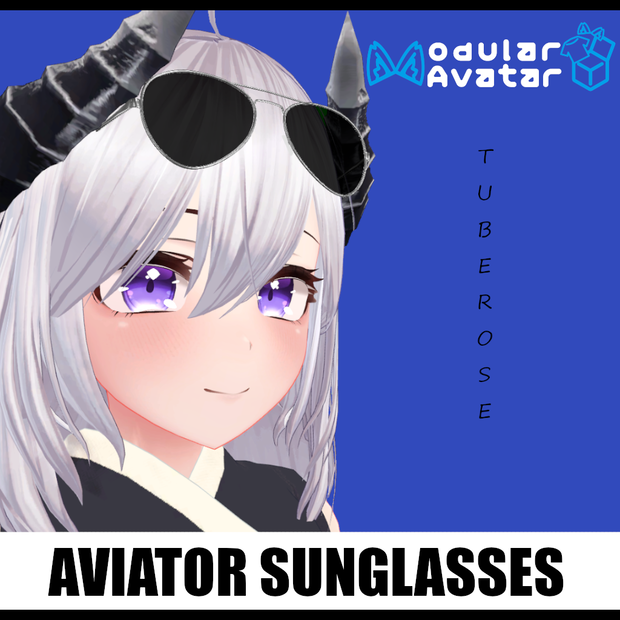
Aviator sunglasses
Has blendshapes to change from on top of head to over eyes
Comes with black/grey version and brown/gold version
Compatible Models:
TubeRose https://booth.pm/en/items/4193460
説明書 / Instructions
JP:
1. Liltoonをインポート
2. ModularAvatarをインポート
3. アバターをインポート*
4. サングラスをインポート
5. サングラスのプレハブをモデル階層にドラッグ
-- サングラスにはモジュラーアバターコンポーネントが付属しており、モデル階層上に存在する限り、自動的にヘッドボーンにマージされます。
6. アップロード
*TubeRose特有の手順:
TubeRoseの場合、髪のマテリアルのレンダリングモードを変更する必要があります。変更しないと、サングラスのレンズが半透明の髪を通して見えてしまいます(前髪は少し透明です)。
AssetsフォルダでThree Dots and Dashフォルダ > TubeRose > Materialsをクリックします。
すべての髪のマテリアルのレンダリングモードを透明から不透明に変更します。
ブレンドシェイプの手順:
サングラスには、目の上に下げるためのブレンドシェイプが付属しています。
階層内のサングラスのドロップダウンでBoltをクリックし、Temple_TipsをShiftキーを押しながらクリックすると、サングラスのすべてのパーツが選択されます。
次に、インスペクターでブレンドシェイプを希望の位置に変更します。
EN:
1.Import Liltoon
2.Import ModularAvatar
3.Import Avatar*
4.Import Sunglasses
5.Drag sunglasses prefab onto model hierarchy
--Sunglasses come with a modular avatar component that will automatically merge it to the head bone as long as it's on the model hierarchy
6.Upload
*TubeRose Specific Instructions:
For TubeRose specifically, the hair material rendering mode needs to be changed, otherwise the sunglass lenses will see through the semitransparent hair (her bangs/front hair have a little bit of transparency)
In the Assets folder click on Three Dots and Dash folder>TubeRose>Materials
Change rendering mode for all hair materials from Transparent to Opaque
Blendshape Instructions:
Sunglasses come with blendshape to lower them down over the eyes.
Under the sunglasses drop down in the hierarchy click on Bolt and shift click Temple_Tips, this will select all parts of the sunglasses.
Then in the inspector change the blendshape to your desired position.
アップデートとリリース情報 / Update and Release Information
2025/7/1
V1.01 Release
모든 리뷰
더보기리뷰 등록
리뷰를 작성하려면 로그인이 필요합니다.
로그인하고 리뷰 쓰기