'%3e%3cg%20clip-path='url(%23roundHexB)'%3e%3cpath%20fill='%236D5DFC'%20d='M256%2040%20443%20148%20443%20364%20256%20472%2069%20364%2069%20148Z'/%3e%3cpath%20fill='%239C93FB'%20d='M69%20148%20256%2040%20443%20148%20256%20256Z'/%3e%3cpath%20fill='%234A3FD1'%20d='M256%20256%20443%20148%20443%20364%20256%20472Z'/%3e%3c/g%3e%3c!--%20top%20face:%20filled%20round%20magnifier%20--%3e%3cg%20transform='matrix(0.8660254,-0.5,0.8660254,0.5,69,148)'%3e%3cg%20transform='matrix(0.935,0,0,0.935,7.02,7.02)'%3e%3ccircle%20cx='88'%20cy='88'%20r='52'%20fill='%23FFFFFF'/%3e%3ccircle%20cx='88'%20cy='88'%20r='28'%20fill='%239C93FB'/%3e%3cpath%20d='M124%20124%20164%20164'%20stroke='%23FFFFFF'%20stroke-width='26'%20stroke-linecap='round'/%3e%3c/g%3e%3c/g%3e%3cg%20transform='matrix(0.8660254,0.5,0,1,69,148)'%3e%3cpath%20d='M96.1,61.08%20L45.9,128.92%20Q34,145%2054,145%20L162,145%20Q182,145%20170.1,128.92%20L119.9,61.08%20Q108,45%2096.1,61.08%20Z'%20fill='%23FFFFFF'/%3e%3c/g%3e%3c!--%20right%20face:%20filled%20bubble%20--%3e%3cg%20transform='matrix(0.8660254,-0.5,0,1,256,256)'%3e%3cg%20transform='matrix(0.855,0,0,0.855,15.66,15.66)'%3e%3cpath%20d='M60%2042H156a28%2028%200%200%201%2028%2028V158Q184%20168%20174.47%20164.96L124.53%20149.04Q115%20146%20105%20146H60a28%2028%200%200%201-28-28V70a28%2028%200%200%201%2028-28Z'%20fill='%23FFFFFF'/%3e%3c/g%3e%3c/g%3e%3c/g%3e%3c/svg%3e)
 Mu
Mu상품 설명
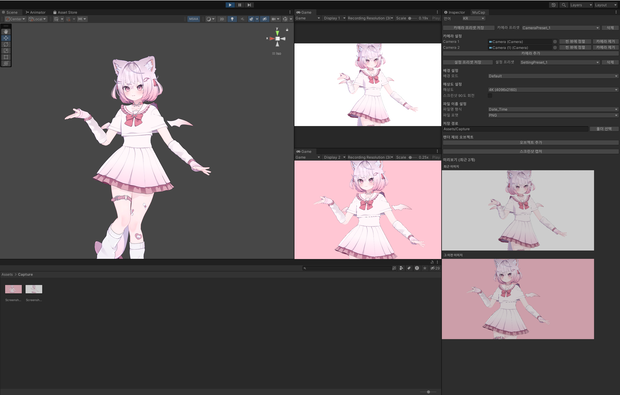
MuCap은 Unity 에디터에서 스크린샷을 찍기 쉽게 하는 툴입니다.
게임 뷰를 고해상도로 캡처하고, 다양한 설정을 통해 반복적인 작업을 간편하게 처리할 수 있도록 제작되었습니다.
---
주요 기능
카메라 선택 및 추가, 프리셋 저장/불러오기
1. 카메라를 씬 뷰의 각도대로 지정하거나, 프리셋을 이용해 여러 개의 카메라 각도를 저장하여 쉽게 전환할 수 있습니다.
2. 카메라를 추가해 여러 카메라의 각도대로 여러 장의 사진을 찍을 수 있습니다.
설정 프리셋
1. 설정을 프리셋으로 지정해 간편히 사용할 수 있습니다.
배경 설정
1. Skybox / 단색 배경 / 투명 배경 선택 가능
해상도 설정
1. FHD, 2K, 4K, 8K 등 주요 해상도 지원
2. 90도 회전 체크박스로 세로형 사진 촬영 가능
포맷 선택
1. PNG / JPG 저장 지원
저장 경로 직접 지정
렌더 제외 오브젝트 지정
1. 특정 오브젝트를 스크린샷에서 제외 가능
미리보기 제공 (최근 2개)
1. 최근 촬영한 2개의 스크린샷을 프리뷰로 볼 수 있음
---
사용 방법
1. 상단바 Tools/MuCap으로 MuCap 실행
2. 툴 창에서 캡처할 카메라 선택
3. 해상도, 배경, 포맷 등 원하는 옵션 설정
4. 필요 시 렌더 제외 오브젝트 추가
5. 스크린샷 캡처 버튼 클릭 → 설정에 따라 이미지가 저장 경로에 생성됨
6. 최근 이미지 두 개가 툴 내에서 미리보기로 표시됨
---
저장 위치
1. 기본 저장 경로는 'Assets/Capture'입니다.
2. 필요 시 "Select Folder" 버튼으로 경로 지정 가능
3. 프리셋은 'Assets/MuCap/Preset'에 저장됩니다.
---
문제 발생시 한국어 설명이 우선시됩니다.
---
EN
MuCap is a tool that makes it easier to take screenshots in Unity editors.
It is designed to capture game views in high resolution and facilitate repetitive tasks through various settings.
---
Key Features
Select and add cameras, save/call presets
1. You can easily switch between the camera by specifying it at the angle of the scene view or using a preset to store multiple camera angles.
2. You can take multiple photos at different camera angles by adding a camera.
Setting preset
1. You can use it easily by designating the settings as a preset.
Background Settings
1. Skybox / Solid Color Background / Transparent Background selectable
resolution setting
1. Support for key resolutions such as FHD, 2K, 4K, 8K, etc
2. A 90-degree rotation check box allows vertical photos to be taken
Select Format
1. PNG / JPG Storage Support
Directly specify the storage path
Specifying render-exclusion objects
1. Can exclude certain objects from screenshots
Provides preview (recent 2)
1. 2 screenshots taken recently can be viewed in preview
---
How to use
1. Run MuCap with Top Bar Tools/MuCap
2. Select the camera to capture in the tool pane
3. Set the desired options such as resolution, background, format, etc
4. Add render-free objects if necessary
5. Click the Capture Screenshot button → Image is generated in the storage path based on settings
6. Two recent images are displayed as previews within the tool
---
Storage Location
1. The default storage path is 'Assets/Capture'.
2. Route to the "Select Folder" button if necessary
3. The preset is stored in 'Assets/MuCap/Preset'.
---
In the event of a problem, Korean explanation is prioritized.
---
JP
MuCapはUnity Editorでスクリーンショットを撮りやすくするツールです。
ゲームビューを高解像度でキャプチャーし、様々な設定を通じて反復的な作業を簡単に処理できるように製作されました。
---
主要機能
カメラの選択と追加、プリセットの保存/読み込み
1. カメラをシーンビューの角度どおりに指定したり、プリセットを利用して複数のカメラ角度を保存して簡単に切り替えることができます。
2. カメラを追加して、複数のカメラの角度に合わせて複数枚の写真を撮ることができます。
設定プリセット
1. 設定をプリセットに指定して手軽に使用できます。
背景設定
1. Skybox / 単色背景 / 透明背景が選択可能
解像度設定
1. FHD、2K、4K、8Kなど主要解像度に対応
2. 90度回転チェックボックスで縦型写真撮影可能
フォーマット選択
1. PNG / JPG保存支援
保存経路を直接指定
レンダー除外オブジェクト指定
1. 特定のオブジェクトをスクリーンショットから除外可能
プレビュー提供(直近2つ)
1. 最近撮影した2つのスクリーンショットをプレビューで見ることができる
---
使用方法
1. 上段 Tools/MuCapでMuCapを実行
2. ツール ウィンドウでキャプチャするカメラの選択
3. 解像度、背景、フォーマットなどご希望のオプションを設定
4. 必要に応じてレンダー除外オブジェクトを追加
5. スクリーンショットキャプチャーボタンをクリック → 設定によって画像が保存経路に生成される
6. 最近、2つの画像がツール内でプレビューで表示される
---
貯蔵位置
1. 基本保存経路は「Assets/Capture」です。
2. 必要に応じて「Select Folder」ボタンで経路指定が可能
3. プリセットは「Assets/MuCap/Preset」に保存されます。
---
問題が発生すると韓国語版の説明が優先になります。
---
모든 리뷰
더보기리뷰 등록
리뷰를 작성하려면 로그인이 필요합니다.
로그인하고 리뷰 쓰기