'%3e%3cg%20clip-path='url(%23roundHexB)'%3e%3cpath%20fill='%236D5DFC'%20d='M256%2040%20443%20148%20443%20364%20256%20472%2069%20364%2069%20148Z'/%3e%3cpath%20fill='%239C93FB'%20d='M69%20148%20256%2040%20443%20148%20256%20256Z'/%3e%3cpath%20fill='%234A3FD1'%20d='M256%20256%20443%20148%20443%20364%20256%20472Z'/%3e%3c/g%3e%3c!--%20top%20face:%20filled%20round%20magnifier%20--%3e%3cg%20transform='matrix(0.8660254,-0.5,0.8660254,0.5,69,148)'%3e%3cg%20transform='matrix(0.935,0,0,0.935,7.02,7.02)'%3e%3ccircle%20cx='88'%20cy='88'%20r='52'%20fill='%23FFFFFF'/%3e%3ccircle%20cx='88'%20cy='88'%20r='28'%20fill='%239C93FB'/%3e%3cpath%20d='M124%20124%20164%20164'%20stroke='%23FFFFFF'%20stroke-width='26'%20stroke-linecap='round'/%3e%3c/g%3e%3c/g%3e%3cg%20transform='matrix(0.8660254,0.5,0,1,69,148)'%3e%3cpath%20d='M96.1,61.08%20L45.9,128.92%20Q34,145%2054,145%20L162,145%20Q182,145%20170.1,128.92%20L119.9,61.08%20Q108,45%2096.1,61.08%20Z'%20fill='%23FFFFFF'/%3e%3c/g%3e%3c!--%20right%20face:%20filled%20bubble%20--%3e%3cg%20transform='matrix(0.8660254,-0.5,0,1,256,256)'%3e%3cg%20transform='matrix(0.855,0,0,0.855,15.66,15.66)'%3e%3cpath%20d='M60%2042H156a28%2028%200%200%201%2028%2028V158Q184%20168%20174.47%20164.96L124.53%20149.04Q115%20146%20105%20146H60a28%2028%200%200%201-28-28V70a28%2028%200%200%201%2028-28Z'%20fill='%23FFFFFF'/%3e%3c/g%3e%3c/g%3e%3c/g%3e%3c/svg%3e)
 かげぇのBOOTH
상품 설명
※English explanation is on the bottom.
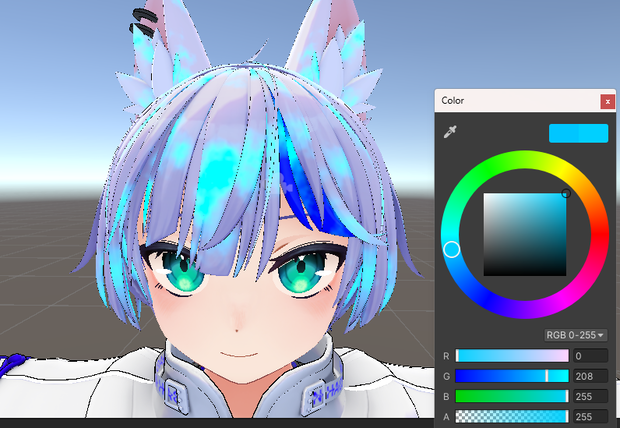
炎?のようにメラメラ光る表現を追加するシェーダーです。
光り具合や設定等の詳細は動画をご覧ください。
シェーダーのパラメータから、以下を調整できます。
_Color : 光る色
Noise Scale : 光る箇所の範囲の大きさ
Speed : 光る箇所の動きの速度
Glow Intensity : どれくらい光るときの色合いを濃くするか
Glow Speed : ぼやっと光るときの速度
Direction : 動きの方向(360度指定)
Base Intensity : 0にすると光るような表現の色合いが完全に消えますが、数値を大きくすると常時色合いが表示されるような調整パラメータ
■使い方
以下の手順で、髪の毛等のメラメラ効果を追加したいオブジェクトに、本シェーダーを適応したマテリアルファイルを追加します。
1. Unity画面左側のヒエラルキータブから、髪の毛等のメラメラ効果を追加したいオブジェクトを選択
2. Unity画面右側のオブジェクトのInspectorタブから、「Materials」箇所にある「▶」ボタンを押してMaterialsの設定を開く
3. 「Materials」の欄の左側の数値を一つ増やす
4. 2の手順で開いた「Materials」の設定内で、Element(要素)が増えるので、増えた箇所の「Element」(一番大きい数字)の箇所に販売商品である「GlowShaderMaterial.mat」というシェーダーが適応されたマテリアルをドラッグ&ドロップして追加する
上記の手順でシェーダーが適応されたマテリアルをオブジェクトに追加し、「GlowShaderMaterial.mat」を画面下のProjectタブ内で選択することで、動画のように画面右側の「Inspector」タブから色合いや光り具合を調整することができます。
■動画、紹介画像でお借りしたアバター
・ハオラン
https://booth.pm/ja/items/3818504
■免責事項
当データを使用して発生したすべての問題や損害について、製作者(かげぇ)は一切責任を負いません。
■利用規約
◆OK
・本製品の改変改造。VRChatや動画などでの使用。
・本製品を利用したWorldのPublic化
◆NG
・本シェーダーまたは本シェーダーを改変したものを、二次配布・販売する行為
・他者の迷惑になる行為での使用
■連絡先
Twitter: @udonnnnnnnnnn
https://twitter.com/udonnnnnnnnnn
■■English explanation (DeepL translated)
This shader adds a flaming, flickering effect.
Please watch the video first.
From the shader parameters, you can adjust the following
_Color : Color of the glow
Noise Scale : Size of the area of the glow
Speed: The speed of the movement of the glowing area.
Glow Intensity: How intense the glow should be.
Glow Speed : Speed of the dim glow
Direction : Direction of movement (360 degrees)
Base Intensity : A parameter to adjust the tint of the glowing area. Setting this to 0 completely removes the tint of the glowing area, but increasing the value will make the tint always visible.
■How to use
Follow the steps below to add a material file with this shader applied to an object to which you want to add a mela mela effect, such as hair. 1.
1. select the object to which you want to add the mela mela effect such as hair from the Hierarchy tab on the left side of the Unity screen.
2. From the Inspector tab of the object on the right side of the Unity screen, press the "▶" button in the "Materials" section to open the Materials settings.
3. In the "Materials" section, press the "▶" button to open the Materials settings.
3. Increase the value on the left side of the "Materials" column by one.
4. in the "Materials" setting opened in step 2, the number of "Elements" will increase, so add a shader-adapted material called "GlowShaderMaterial.mat" (a product for sale) to the "Element" (the largest number) in the increased area by dragging and dropping it. Add the material by dragging and dropping it.
Once the shader-adapted material is added to the object as described above, you can select "GlowShaderMaterial.mat" in the "Project" tab at the bottom of the screen to adjust the hue and glow from the "Inspector" tab on the right side of the screen, as shown in the video. The "GlowShaderMaterial.
■Disclaimer
The producer (Kagee) is not responsible for any problems or damages caused by the use of this data.
■Terms of use
◆OK
・Alteration or modification of this product, use in VRChat or video, etc.
・Publication of World using this product
◆NG
・Secondary distribution or sale of this Shader or modified versions of this Shader
・Use of the site for the purpose of slandering specific individuals or groups, or for political or religious activities is prohibited
■Contact
Twitter: @udonnnnnnnnnn
모든 리뷰
더보기리뷰 등록
리뷰를 작성하려면 로그인이 필요합니다.
로그인하고 리뷰 쓰기